Cantonese Input With IBus
This tutorial is for people that want to keep the language of their operating system as its default, which I'm guessing will be the language chosen at installation, and not traditional or simplified Chinese. It is for people that want to enter the occasional Chinese character, for searches or learning etc., and keep the rest default. Perfect for "bananas" like me (they say we're yellow on the outside, white on the inside, like a banana, lol!) This tutorial makes use of IBus, I have used SCIM in the past on an older installation of Debian, but could never get it to work on more modern installations. This tutorial is for Ubuntu MATE, but I'm guessing it works on most MATE distributions...
Installation And Setup
First, let's install IBus, the terminal command is:
sudo apt-get install ibus ibus-table-cantonese
Then click "Menu" on the left of the top toolbar and click "Control Center":

Under "Personal", click "Language Support":
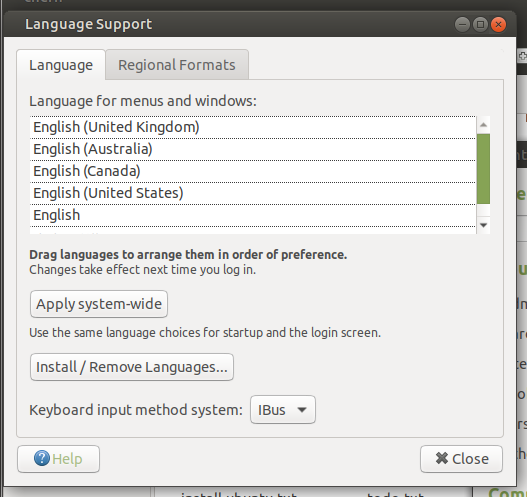
Click "Install / Remove Languages...":

You can then find "Chinese (traditional)" and click the check box under "Installed" and click "Apply". It will ask you for your superuser password before installing the language.
Back in the "Language Support" window, "Chinese (Hong Kong)" (it appears as traditional Chinese) will be at the bottom and greyed out in the "Language for menus and windows:" list (you might need to close the window and open it again to refresh your language list). It is OK for it to be at the bottom and greyed out as we don't want to change the system default. Then where it says "Keyboard input method system:", select "IBus" from the dropdown box. If "IBus" is not available, try logging out and back in or rebooting your computer.
Then back in the "Control Center", under "Other", click "IBus Preferences":

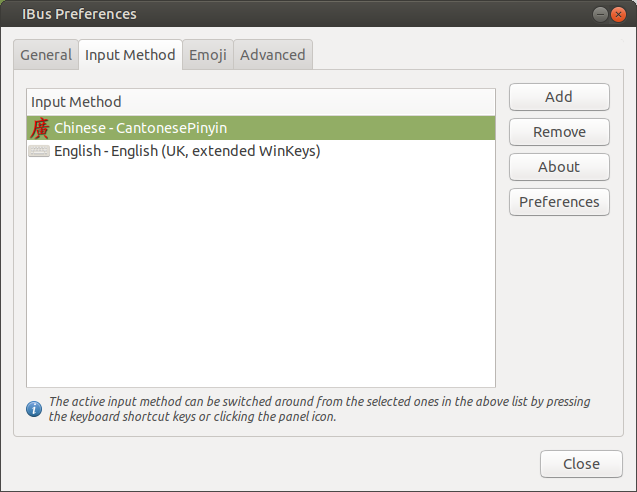
In the "Input Method" tab, click "Add", then "Chinese" then "CantonesePinyin":

If you have a UK keyboard, you can remove the US layout and add a UK layout:
Switching Input Method
To switch input method, you can hold down the "Super" key and press the space bar twice, to scroll through your input methods. If you have installed Linux on a computer that was preinstalled with Windows, the "Super" key will most likely be the key with the Windows logo on it. Alternatively, you can left click the "EN" button on the right of the top toolbar and click on the input method to switch to it, which only works if the icon is in the system tray, a setting that can be turned on or off in the IBus preferences.
IME Operation
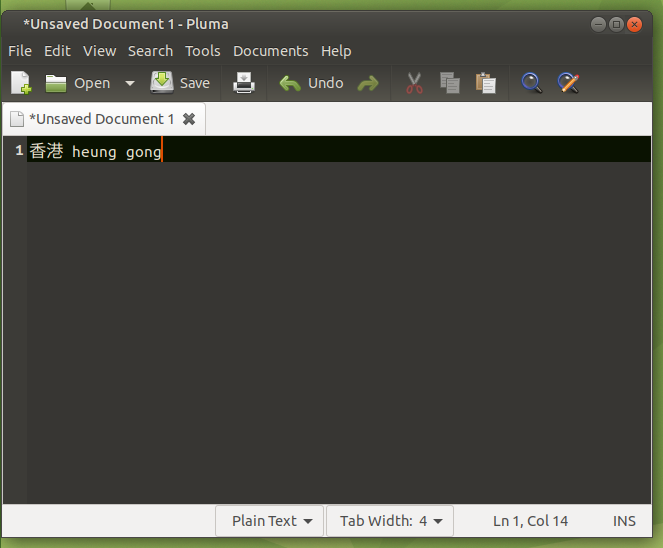
For those who have never used an IME, think of it like predictive texting. Using the English alphabet, you start typing the pinyin of the Chinese character you want to enter, and the IME "guesses" what it is you want to enter. For example, to enter the traditional Chinese characters for "Hong Kong" (pinyin is heung gong) on my particular installation, I start with the character "Hong" by typing "h" (without the quote marks!), and this makes the correct character suggestion appear at entry number 2, so I type "2" to enter the character into my text editor. Similarly, for "Kong" (pinyin: gong) I type "g" "o" "n" "g" and then finally "1" when the character appears as entry number 1 in the list of suggestions. You can also use the up/down keys on the direction pad to scroll through the list of suggestions.

For additional Chinese characters, you may want to install the CantonHK table:
sudo apt-get install ibus-table-cantonhk
Then you can add it to your input methods in the IBus preferences just like you did before:
