Exporting
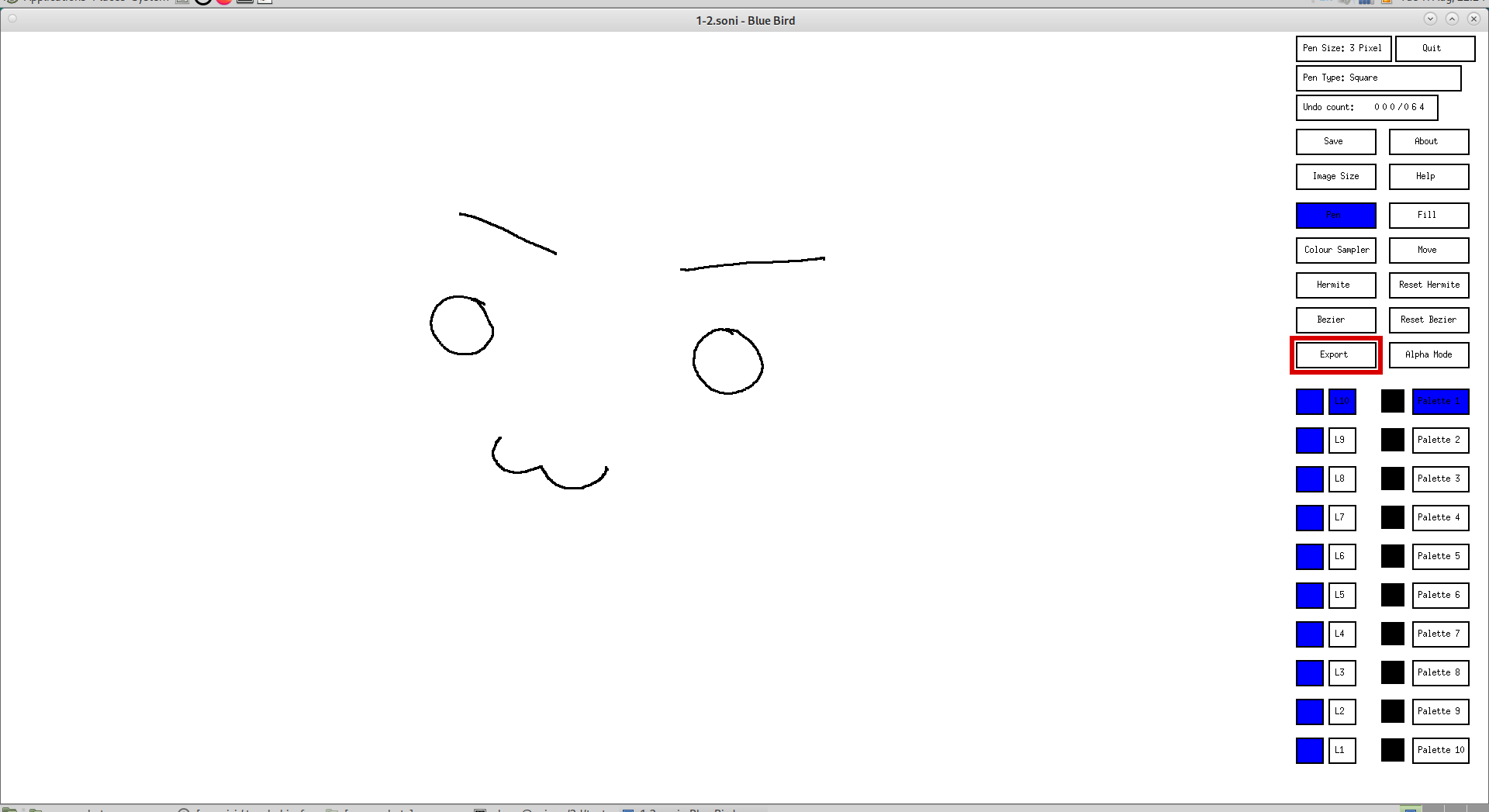
Exporting is done by clicking on the Export button:
Then choose whether to export to [AZUR], BMP or a BMP Thumbnail. Press the esc on your keyboard to cancel:
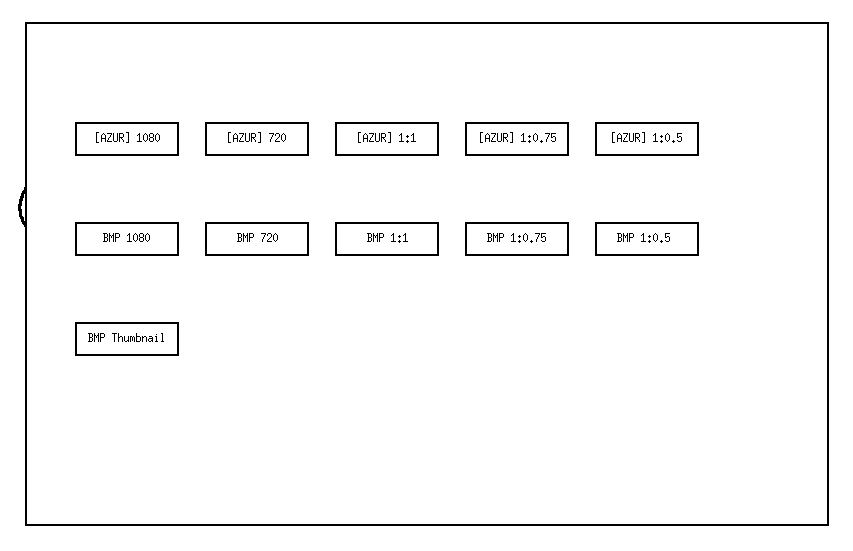
For example, clicking [AZUR] 1080 will export the visible drawing to a [AZUR] file that is 1920 x 1080 pixels. Naming a file without a dot will export to a [AZUR] image that has the same name as exporting the file name with a dot. For example, 1-2.soni and 1-2 will both export to 1-2.azur.
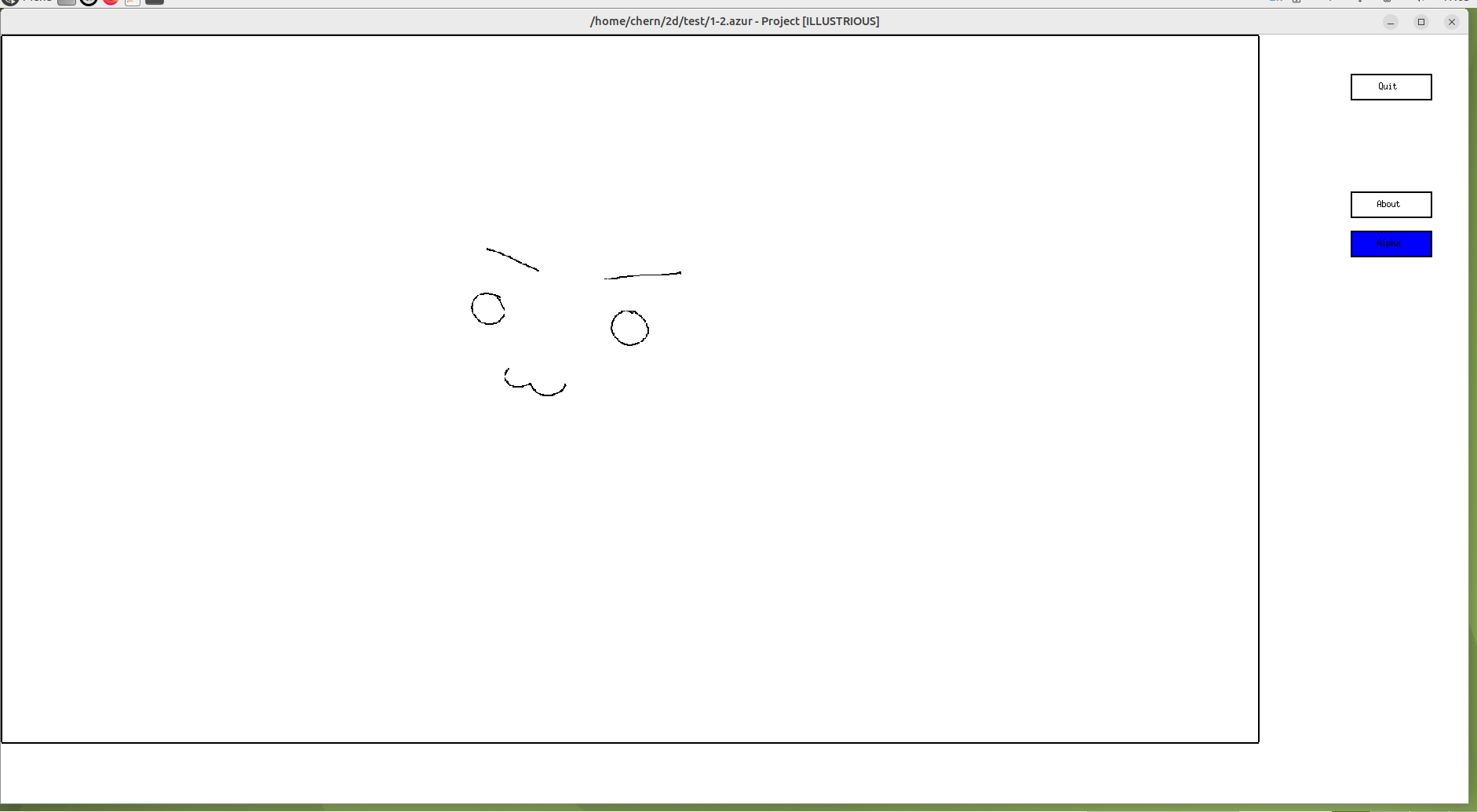
If you want to, you can export to a BMP or BMP thumbnail. This is useful for programs that don't have [AZUR] support.
At the moment, the resampling algorithm is a work in progress. For now it is better to export as 1:1 and then resize the image in a program like The GIMP.
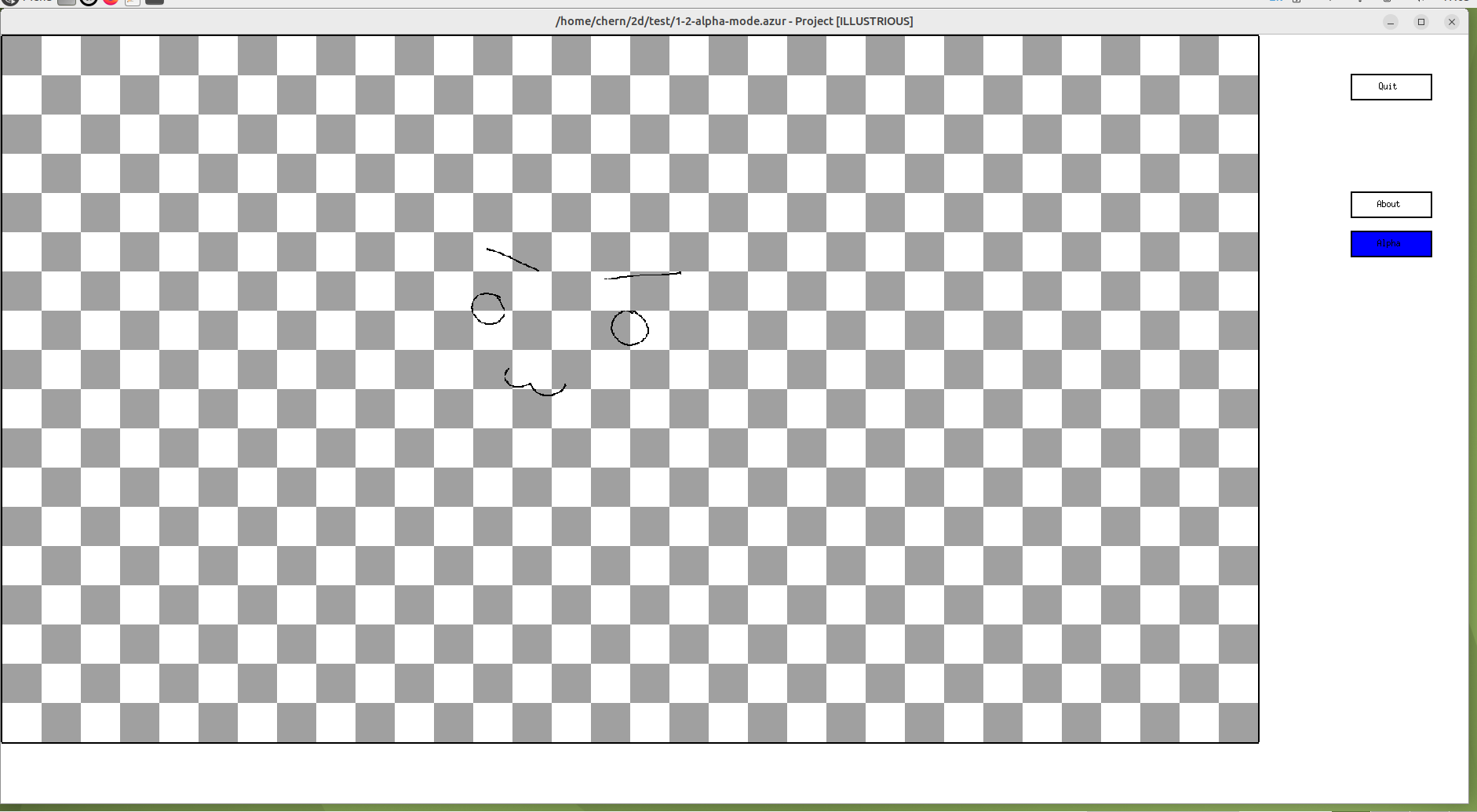
If you want to export a transparency, so that all white (0xFFFFFF) is transparent, click on the Alpha Mode button:
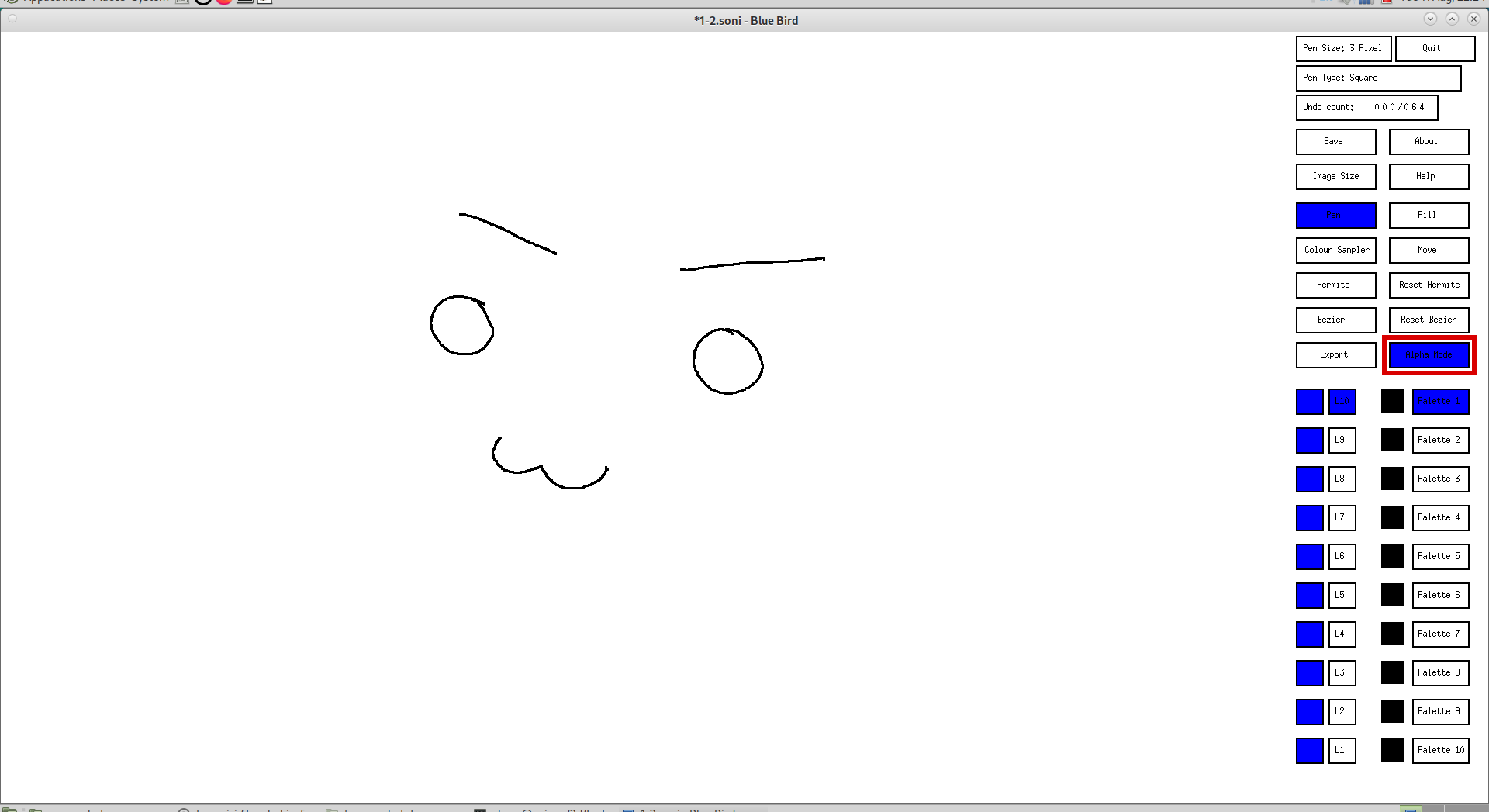
Then click Export again. Clicking Export again will overwrite the previous export of the same option. This is where renaming files come in handy: