Mode Select
The mode select buttons are on the right of the application window, the Hermite mode and Bézier mode deserve a tutorial of their own:
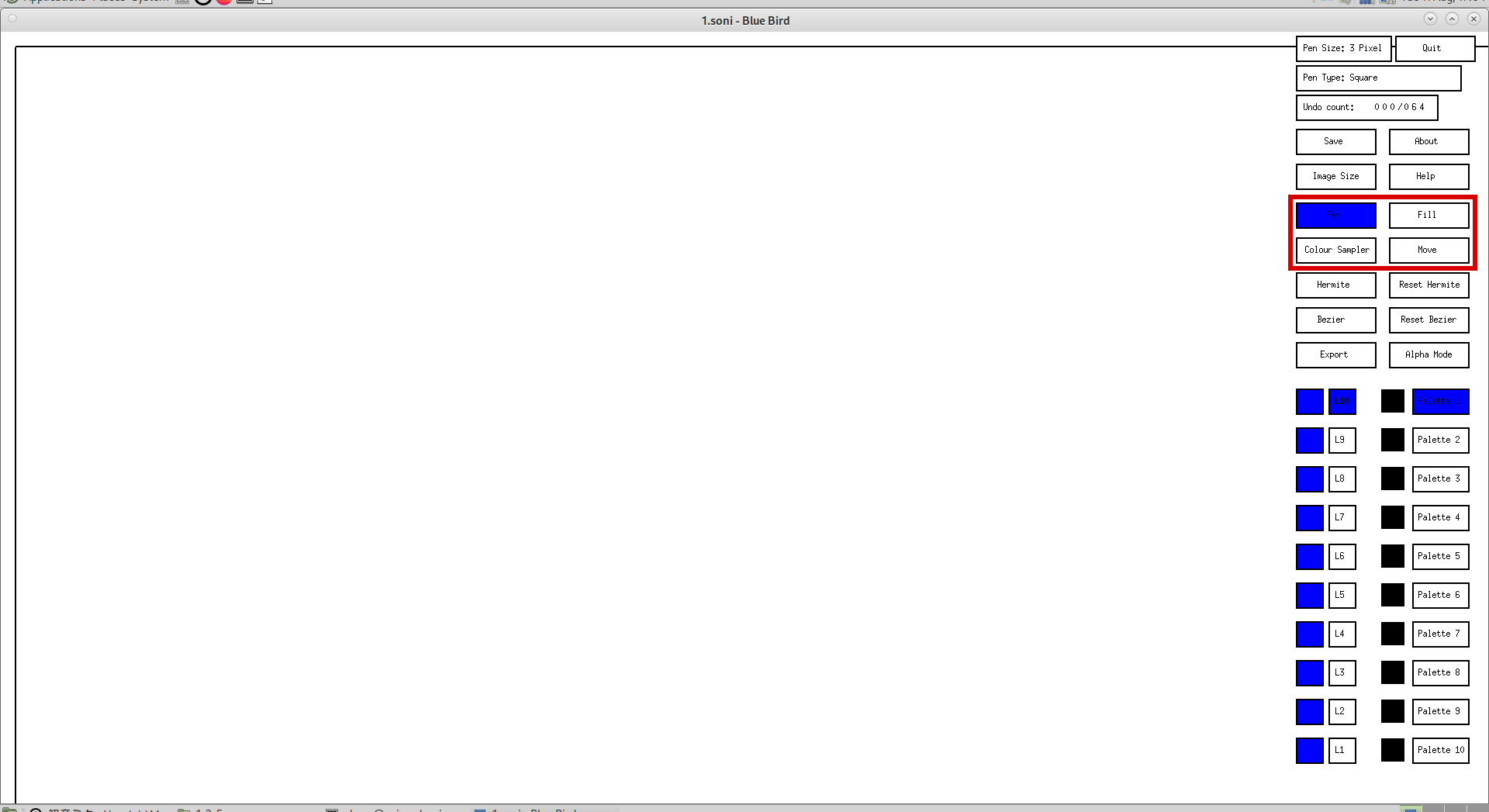
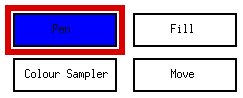
The current mode is the button selected in blue:
Pen Mode
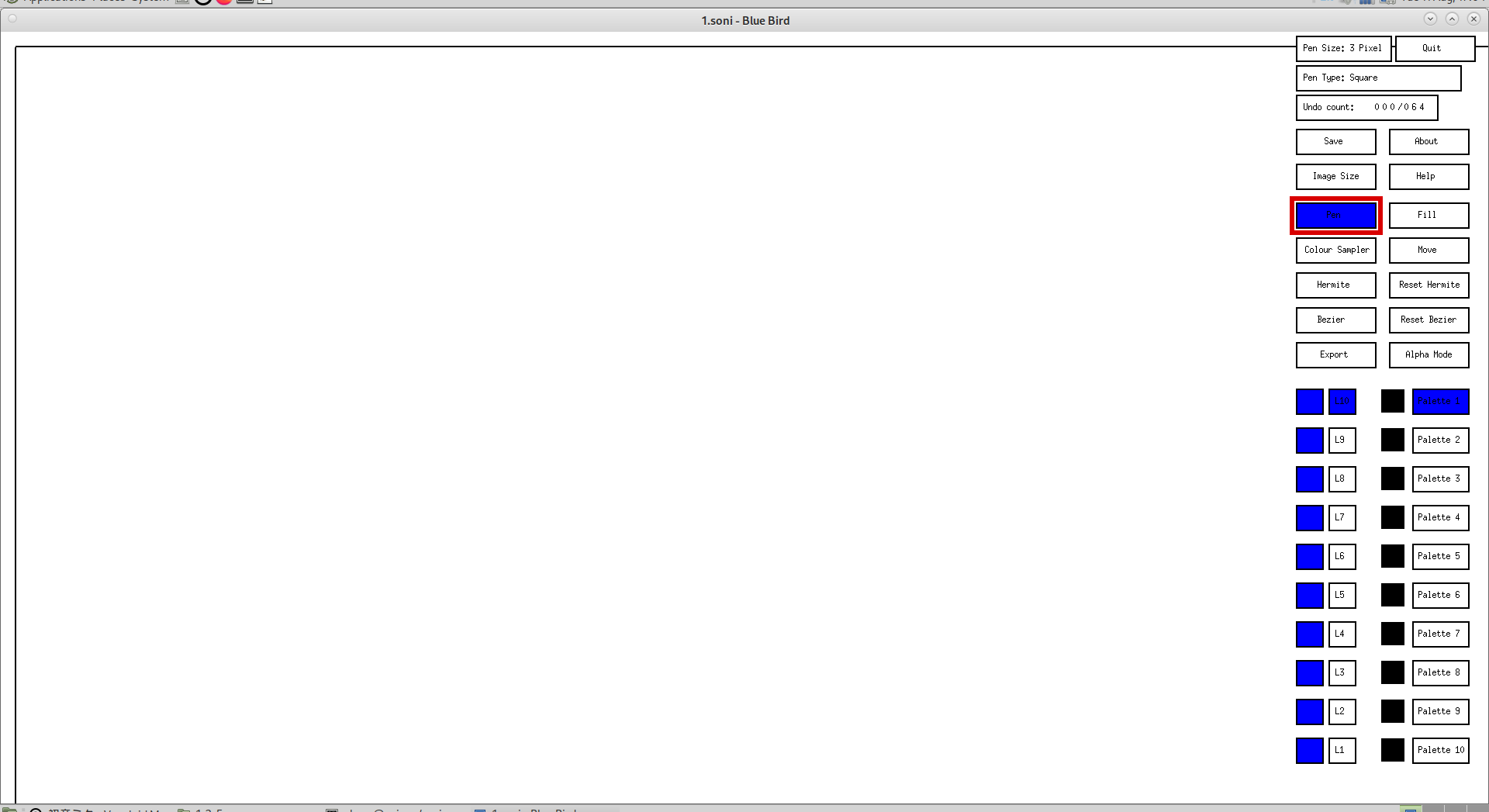
Unless already selected, click the "Pen" mode select button to activate the pen mode:
Then, on your keyboard, press c for circular pen, s for square pen, r for horizontal rectangular pen, t for vertical rectangular pen, d for diagonal pen 1, f for diagonal pen 2 or e for erase pen. Erase pen is a special case in that it ignores the colour of the current palette and just erases the pixels (sets them to 0xFFFFFF/transparent).
Then, on the top of your keyboard, press 1, 2, 3, 4, 5, 6, 7, 8, 9 or 0 for 1 pixel, 2 pixel, 3 pixel, 4 pixel, 5 pixel, 6 pixel, 7 pixel, 8 pixel, 9 pixel or 10 pixel pen sizes respectively. Note that the circular pen only has 1, 3, 5, 7 and 9 pixel sizes.
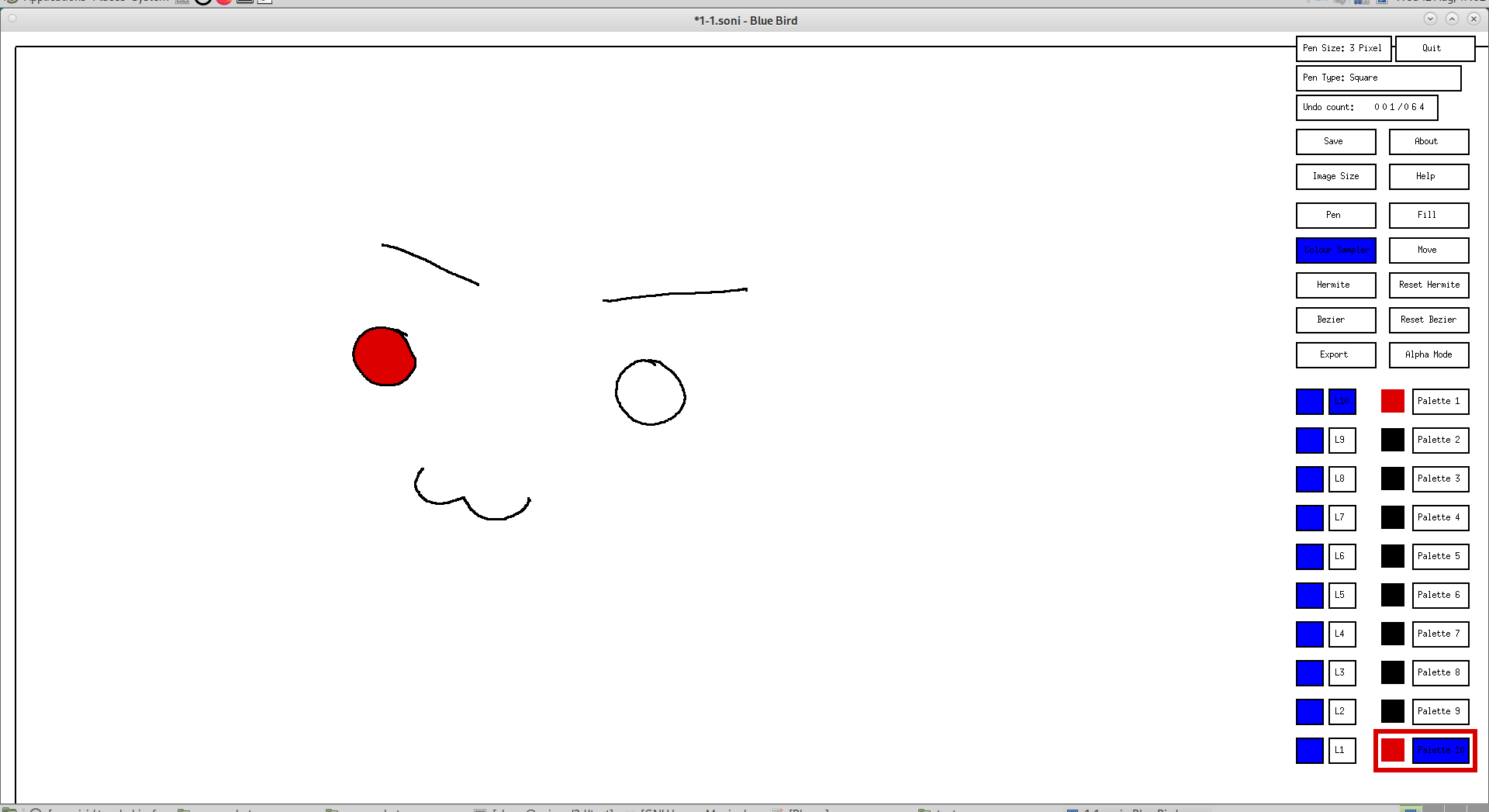
Then select the palette that you wish to use for the colour of the pen:
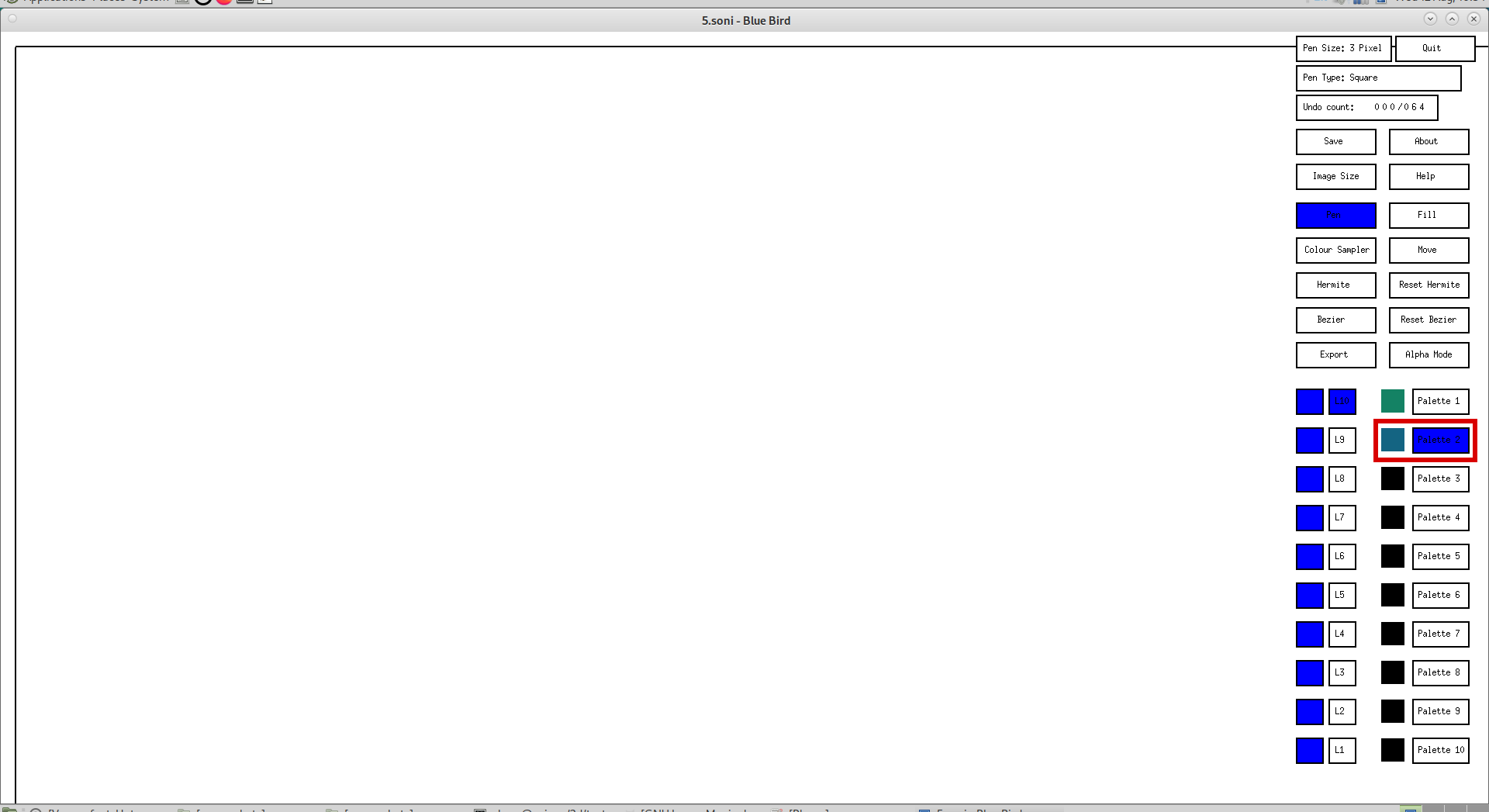
Then, when it is decided, use your graphics tablet or mouse to draw within the drawing border of the application:
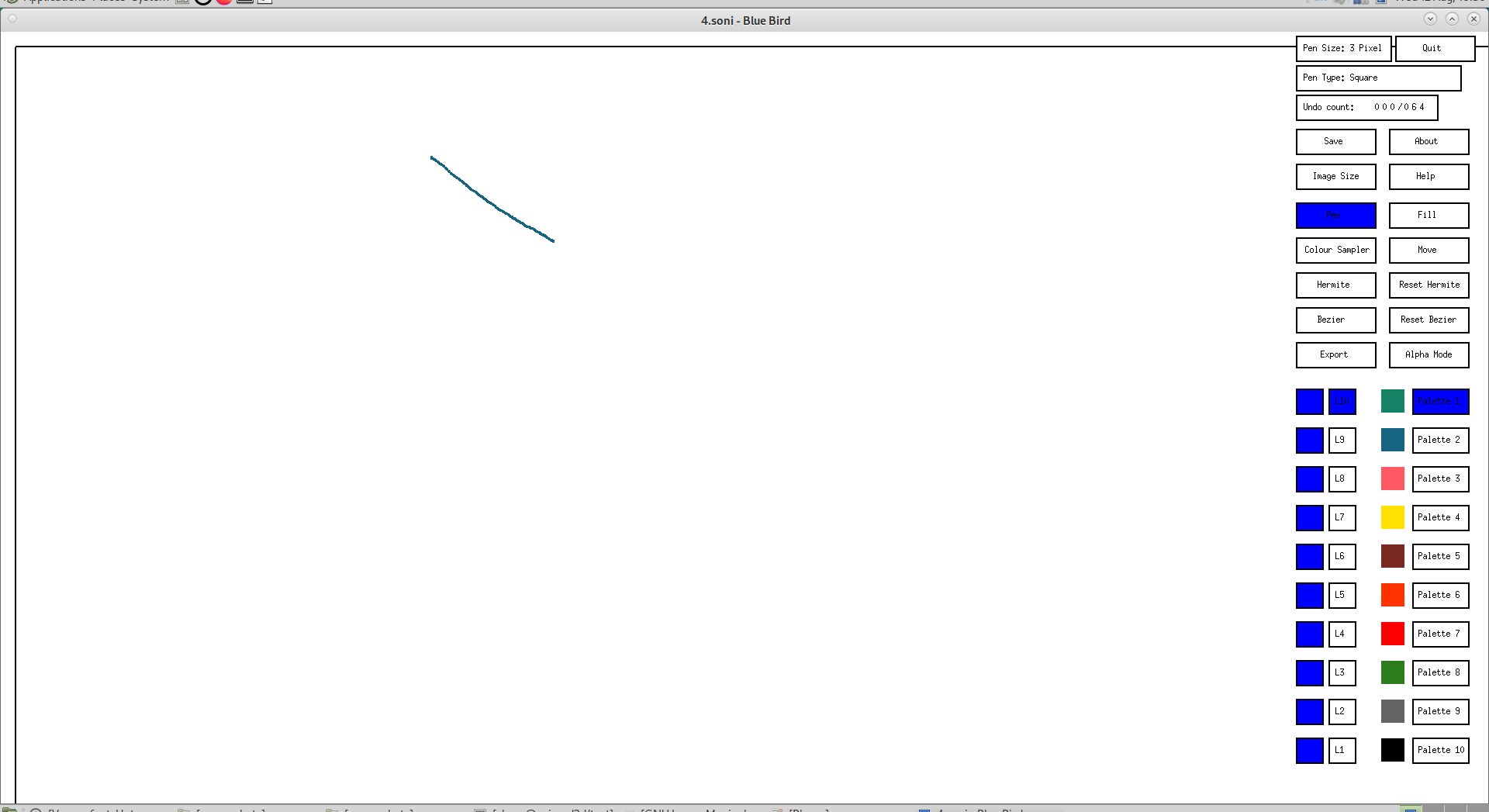
Move Mode
To activate the move mode, click on the "Move" mode select button:
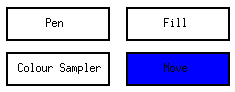
To change the amount of distance in pixels to be moved, press 1, 2, 3, 4, 5, 6, 7, 8, 9 or 0 on your keyboard. For example, pressing 0 will set the move amount to 200 pixels. Of course this is customisable.
Then press ctrl up, ctrl down, ctrl left or ctrl right on your keyboard to move the drawing of the current layer up, down, left or right respectively:
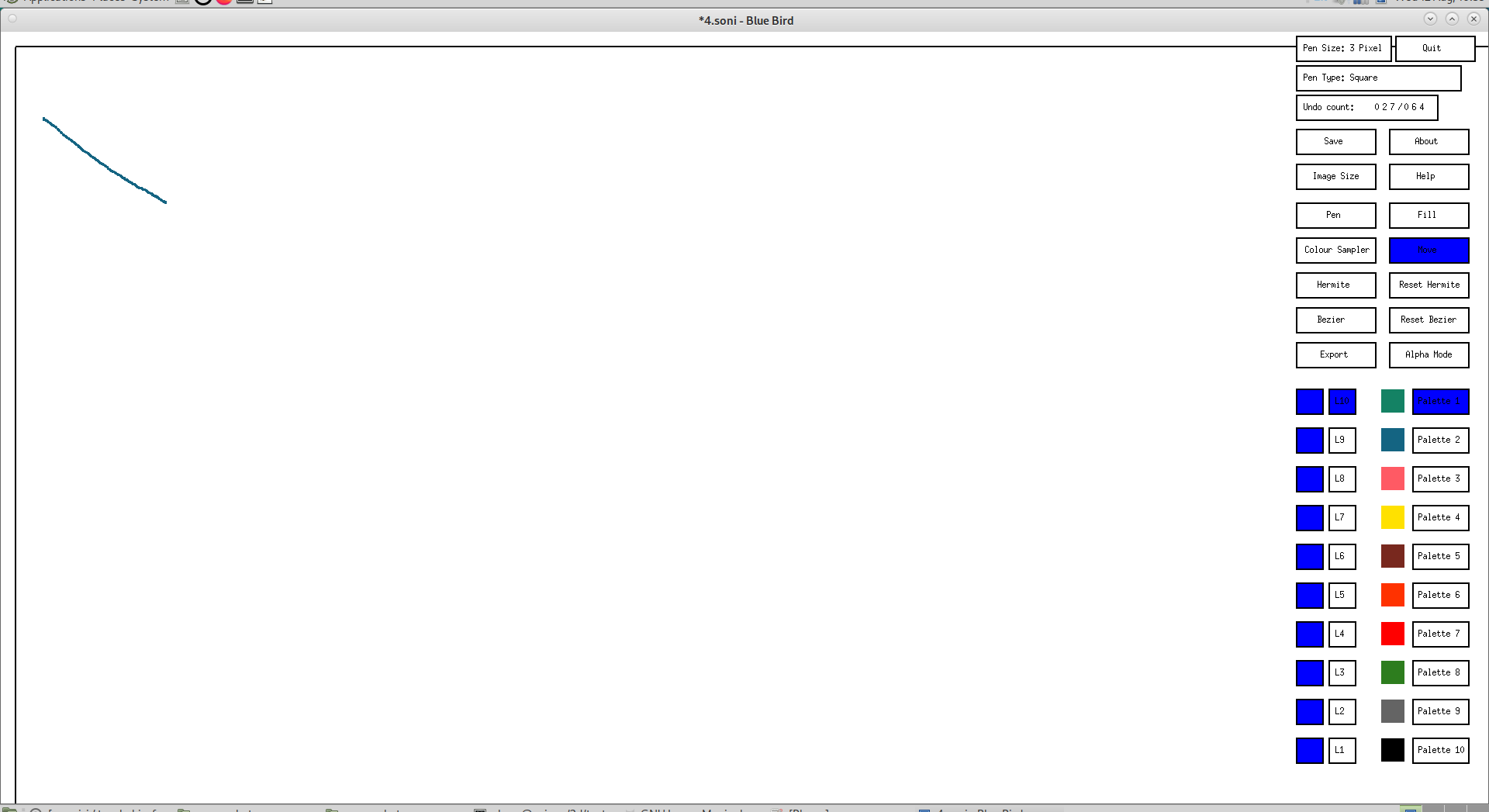
Please note that any drawing that is moved further than the drawing border will be discarded.
Fill Mode
To activate the fill mode, click on the "Fill" mode select button:
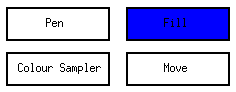
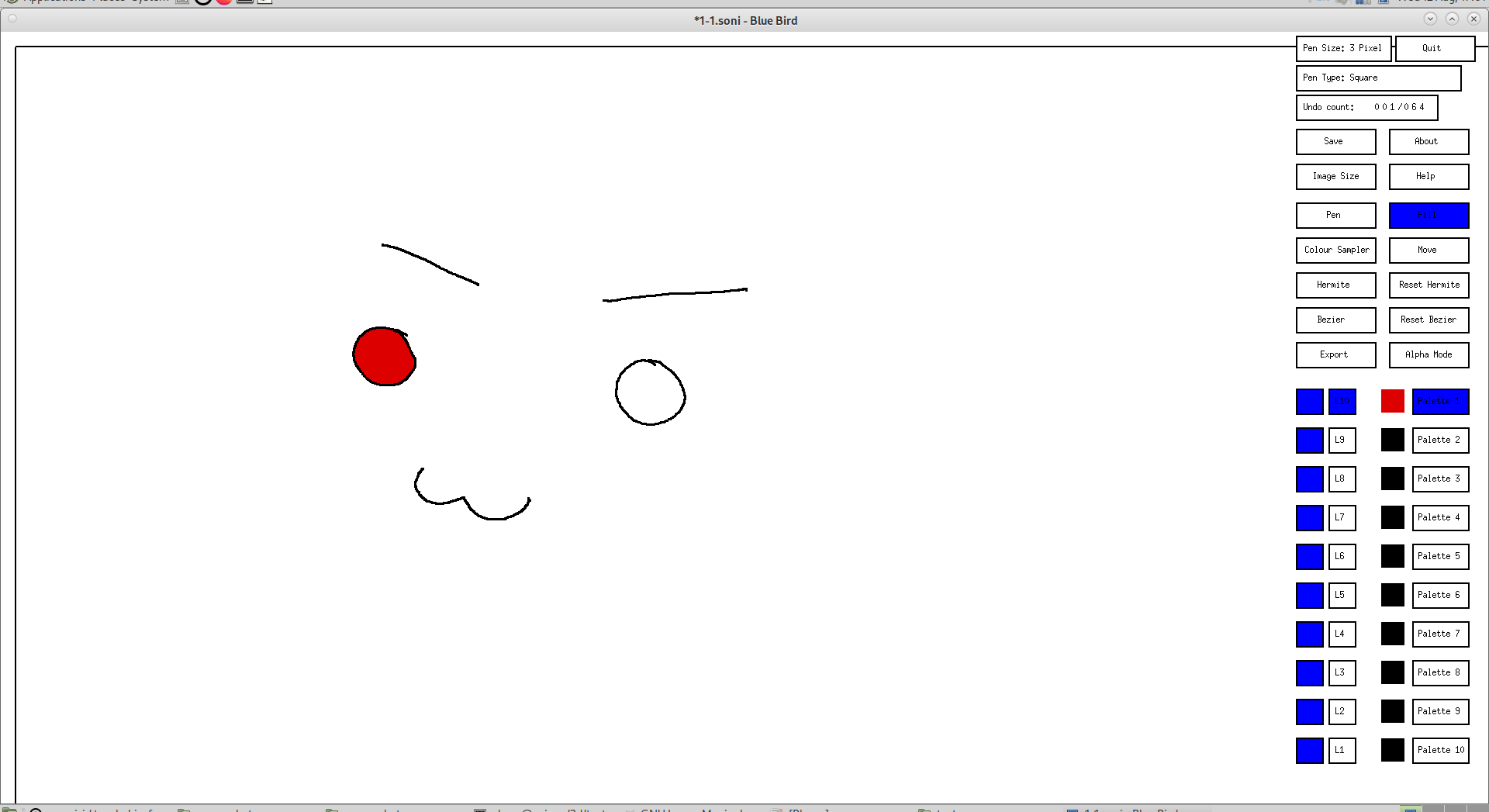
Then, after choosing your palette, click on the area that you want to fill and it will fill that area with the colour of the current palette:
Colour Sampler Mode
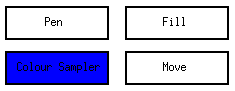
To activate the colour sampler mode, click on the "Colour Sampler" mode select button:
Then choose which palette you want the sampled colour to be assigned to:
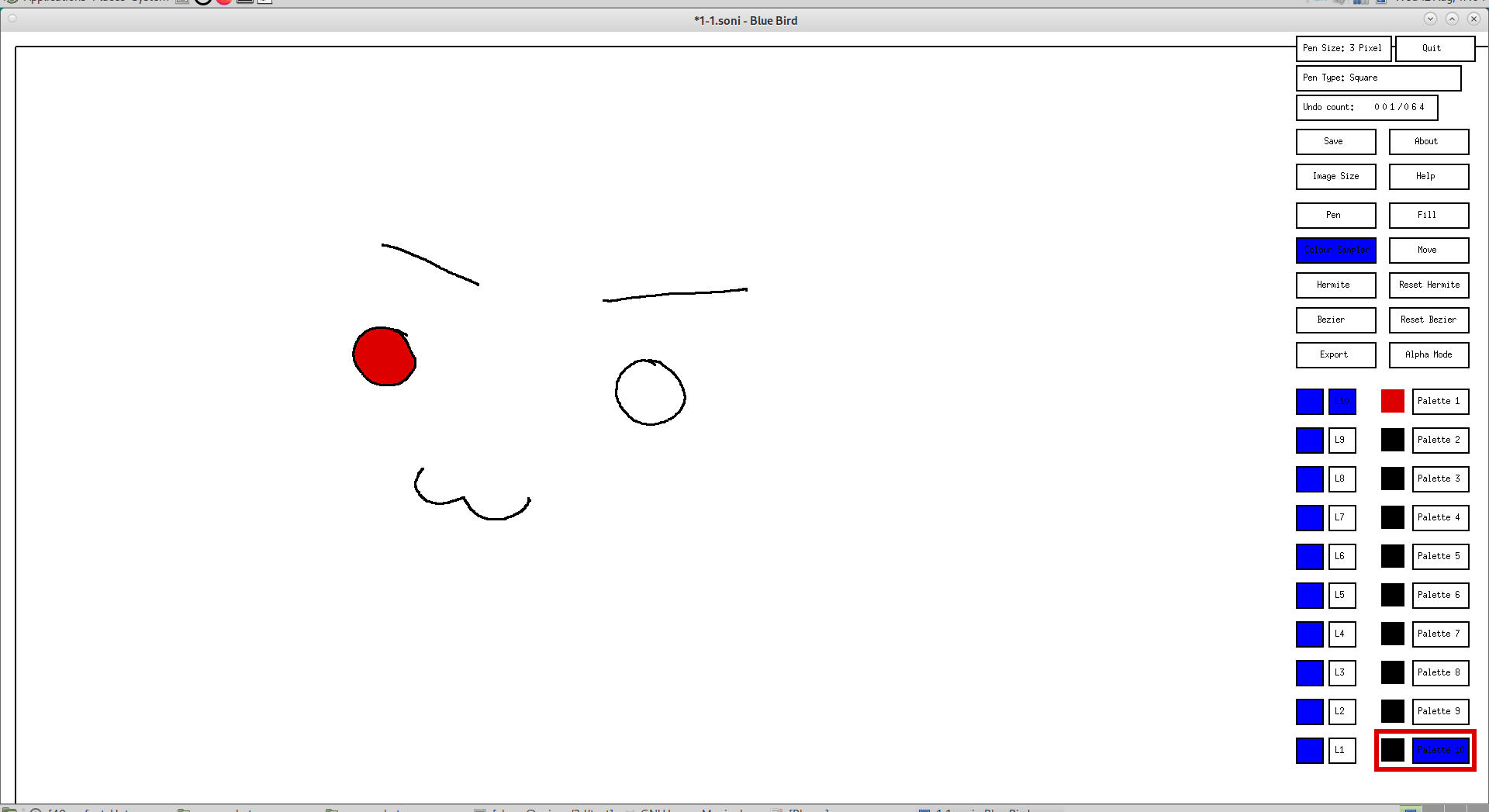
Then click on the colour on the current layer that you wish to assign to the palette: